---
title: WeCom Bot
description: Connect CowAgent to WeCom AI Bot (WebSocket long connection)
---
Connect CowAgent via WeCom AI Bot, supporting both direct messages and group chats. No public IP required — uses WebSocket long connection with Markdown rendering and streaming output.
WeCom Bot and WeCom App are two different integration methods. WeCom Bot uses WebSocket long connection, requiring no public IP or domain, making it easier to set up.
## 1. Create an AI Bot
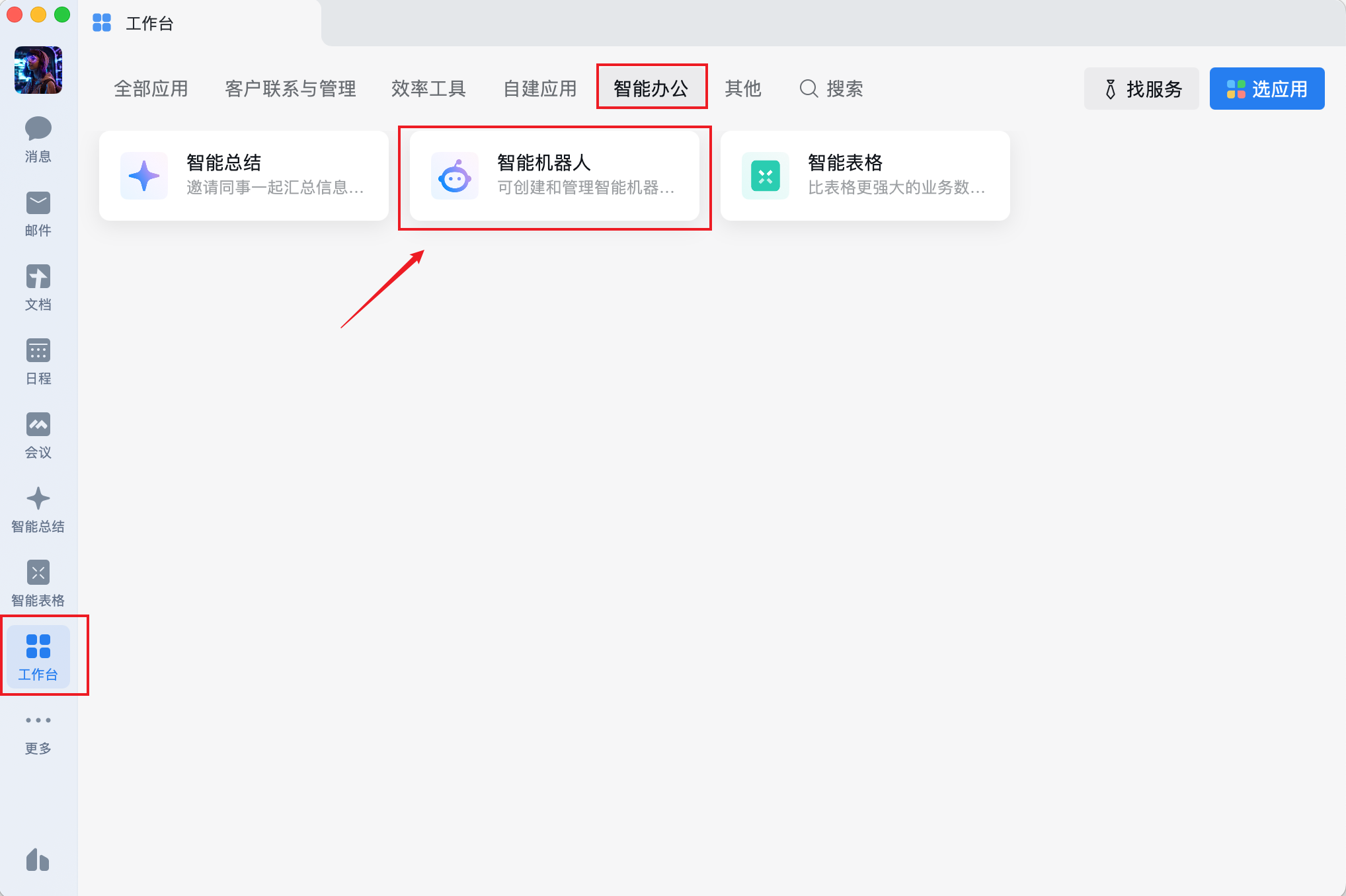
1. Open the WeCom client, go to **Workbench**, and click **AI Bot**:
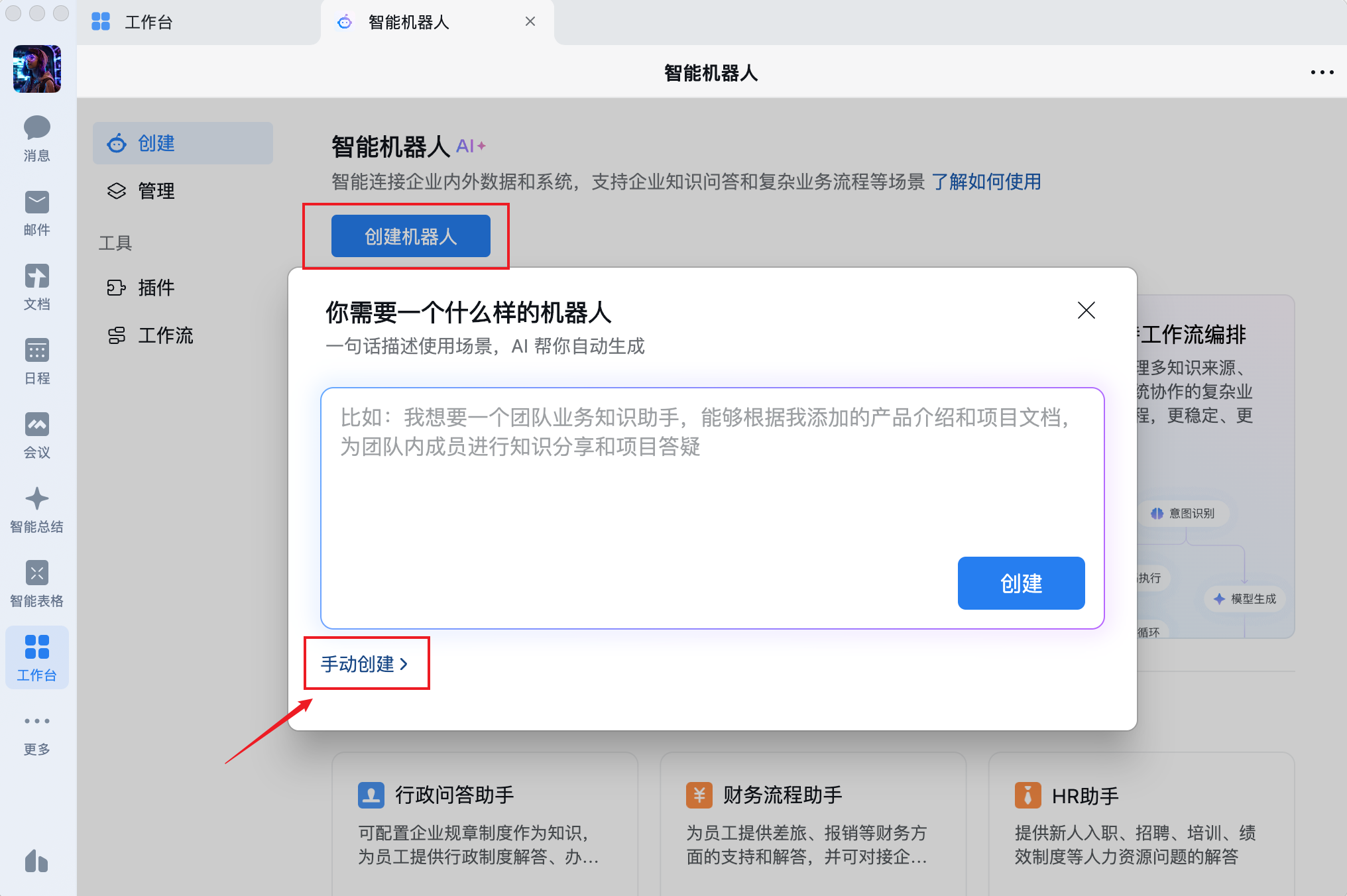
 2. Click **Create Bot** → **Manual Creation**:
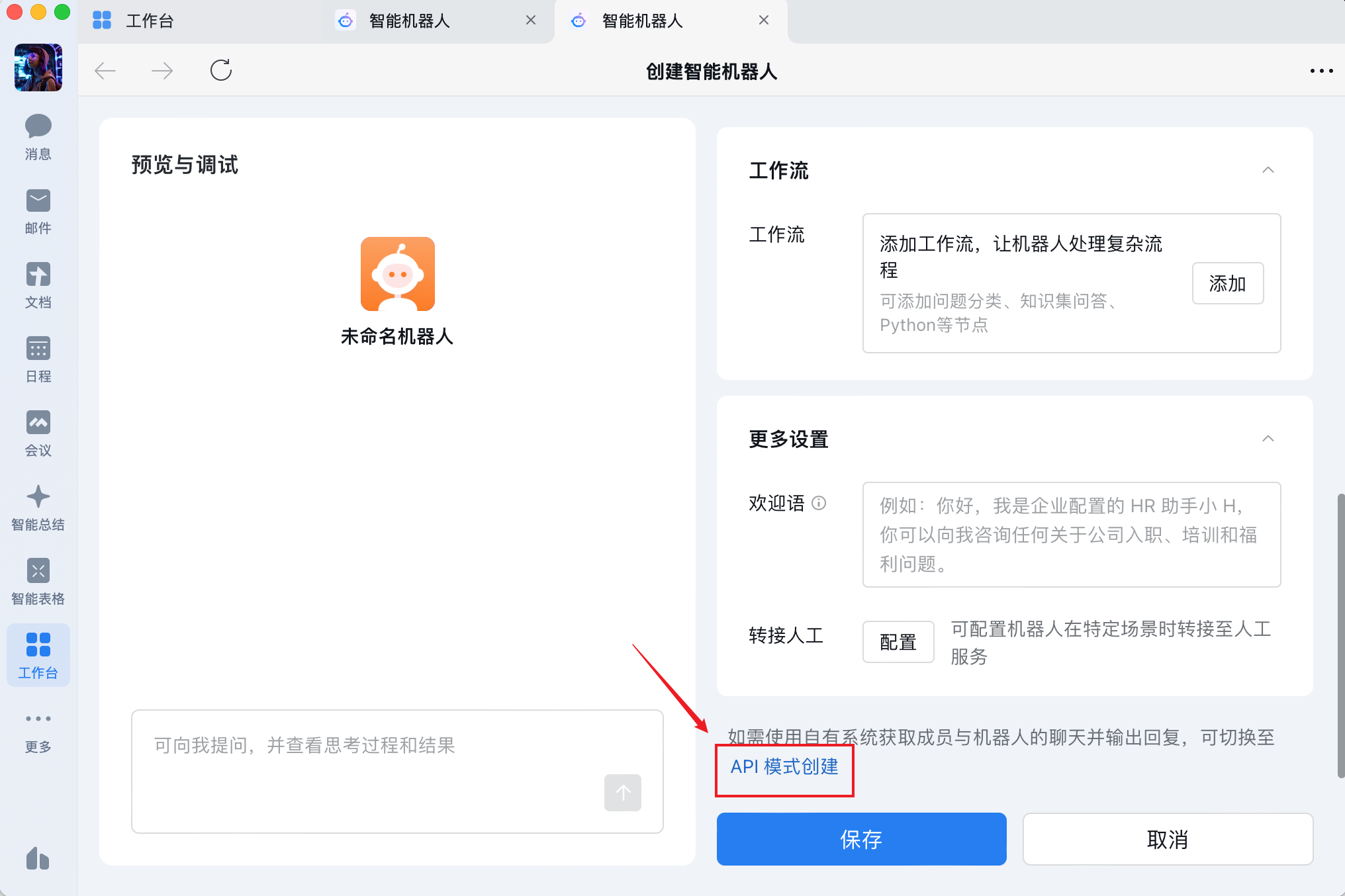
 3. Scroll to the bottom of the right panel and select **API Mode**:
 4. Set the bot name, avatar, and visibility scope. Select **Long Connection** mode, note down the **Bot ID** and **Secret**, then click Save.
## 2. Configuration
### Option A: Web Console
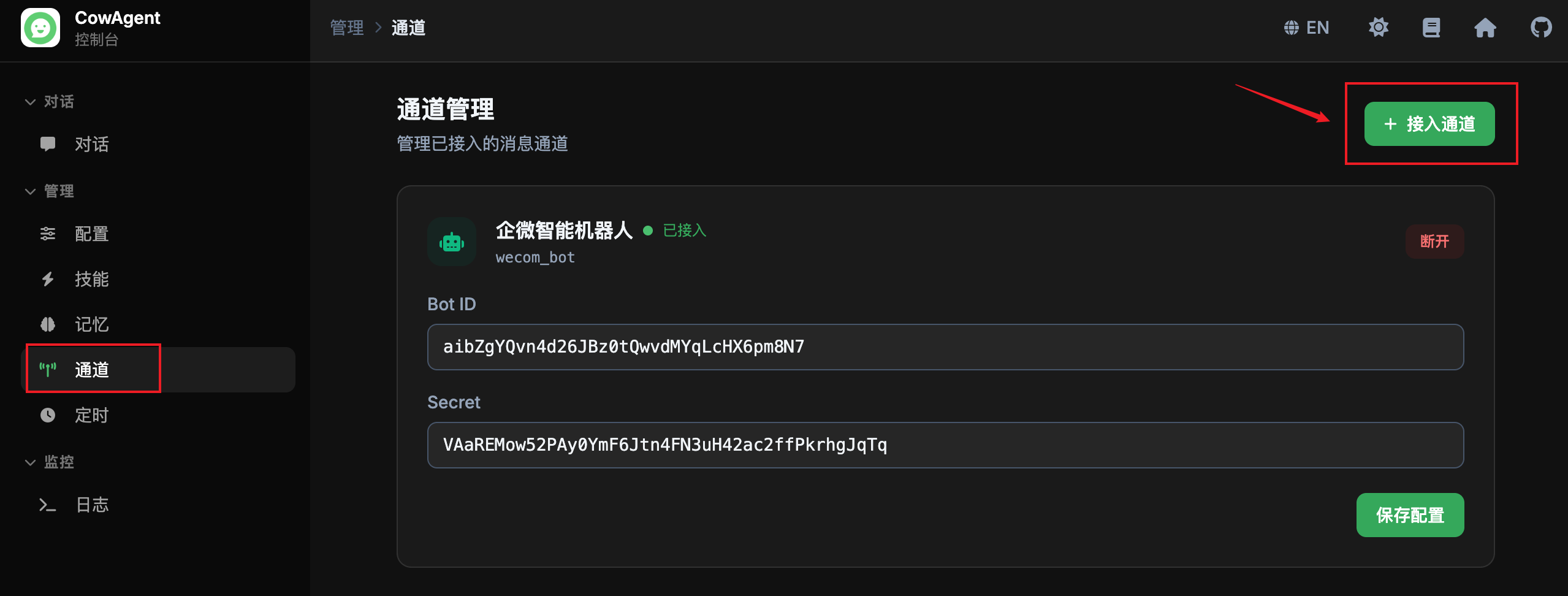
Start the program and open the Web console (local access: http://127.0.0.1:9899). Go to the **Channels** tab, click **Connect Channel**, select **WeCom Bot**, fill in the Bot ID and Secret from the previous step, and click Connect.
4. Set the bot name, avatar, and visibility scope. Select **Long Connection** mode, note down the **Bot ID** and **Secret**, then click Save.
## 2. Configuration
### Option A: Web Console
Start the program and open the Web console (local access: http://127.0.0.1:9899). Go to the **Channels** tab, click **Connect Channel**, select **WeCom Bot**, fill in the Bot ID and Secret from the previous step, and click Connect.
 ### Option B: Config File
Add the following to your `config.json`:
```json
{
"channel_type": "wecom_bot",
"wecom_bot_id": "YOUR_BOT_ID",
"wecom_bot_secret": "YOUR_SECRET"
}
```
| Parameter | Description |
| --- | --- |
| `wecom_bot_id` | Bot ID of the AI Bot |
| `wecom_bot_secret` | Secret for the AI Bot |
After configuration, start the program. The log message `[WecomBot] Subscribe success` indicates a successful connection.
## 3. Supported Features
| Feature | Status |
| --- | --- |
| Direct Messages | ✅ |
| Group Chat (@bot) | ✅ |
| Text Messages | ✅ Send & Receive |
| Image Messages | ✅ Send & Receive |
| File Messages | ✅ Send & Receive |
| Streaming Reply | ✅ |
| Scheduled Push | ✅ |
## 4. Usage
Search for the bot name in WeCom to start a direct conversation.
To use in group chats, add the bot to a group and @mention it to send messages.
### Option B: Config File
Add the following to your `config.json`:
```json
{
"channel_type": "wecom_bot",
"wecom_bot_id": "YOUR_BOT_ID",
"wecom_bot_secret": "YOUR_SECRET"
}
```
| Parameter | Description |
| --- | --- |
| `wecom_bot_id` | Bot ID of the AI Bot |
| `wecom_bot_secret` | Secret for the AI Bot |
After configuration, start the program. The log message `[WecomBot] Subscribe success` indicates a successful connection.
## 3. Supported Features
| Feature | Status |
| --- | --- |
| Direct Messages | ✅ |
| Group Chat (@bot) | ✅ |
| Text Messages | ✅ Send & Receive |
| Image Messages | ✅ Send & Receive |
| File Messages | ✅ Send & Receive |
| Streaming Reply | ✅ |
| Scheduled Push | ✅ |
## 4. Usage
Search for the bot name in WeCom to start a direct conversation.
To use in group chats, add the bot to a group and @mention it to send messages.